Hi All, Our website moved to a new URL. Please bookmark the new link: https://ns2bloggers.blogspot.com/

Wednesday, 4 February 2015

STATISTICAL ANALYSIS USING RANDOM SETTINGS IN NS2

While running ns2, we always get the same results as much we run with the same parameters. If we need to get different results for running with same parameters,we need to add some random property in our scripting. By using this property, we can check what goes wrong at an exact point. Normally in ns2, simulations are under three categories;

DETERMINISTIC SETTING

This setting is the default setting of ns2 and we get the same output in every run. This simulation scenario is usually convenient for debugging process and to locate errors that occurred in simulation codes or to study about complex nature of networks. So while running in deterministic setting, we will get same results on every time and which helps easy to analysis.

RANDOM SETTING

In case of a statistical analysis, we are forced to simulate a simulation scenario several times and to find out mean & variance. By using deterministic setting we are not able to do this because the variance is zero for that. So we have to provide randomness with every simulation running. This is done by using RNG [Random Number Generator]. This randomness is in two forms;

Single Stream Random Setting

By default, ns2 always have defaultRNG with seed value one(1). To provide randomness, we have to seed different simulation runs differently. In single stream random setting, we need only one RNG and we set different runs with different outputs by providing different values of  "k". i.e;
$defaultRNG seed <k>
and random generator use this seed value <k> as seed for generating randomness.
TCL SCRIPT:
$defaultRNG seed 101
set arrivalRNG [new RNG]
set arrival_ [new RandomVariable/Exponential]
$arrival_ set avg_ 5
$arrival_ use-rng $arrivalRNG
puts "Inter-arrival time Packet size"
for {set j 0} {$j < 5} {incr j} {
puts [format "%f " [$arrival_ value] ]
 }
OUTPUT:
Inter-arrival time
.056 
.234 
.090 
.678 
.456 
DESCRIPTION:
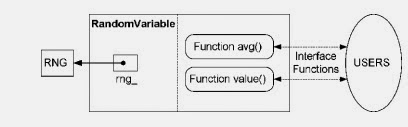
Here, a exponential random variable arrival_ is created and its parameters are provided in the following line. For specifying a RNG, we use OTCL command use-rng and to print the result we used command value.
Schematic Diagram

 Multiple Stream Random Setting

If we need more than one variable to provide randomness in simulation runs,we have to create different set of new RNG as per our requirements.

REFERENCE: 
Introduction to Network Simulator NS2 by Teerawat Issariyakul • Ekram Hossain; 2nd Edition

Monday, 2 February 2015

GREP FUNCTION: EASY SEARCH COMMAND

Friends,
     Now we are trying to explain a Linux command which helps you a lot in your researches. Its nothing but a simple command called as GREP. It is a powerful command which helps you to search a particular string or words from a file or from a folder and also in some cases it helps during trace file analysis.

SYNTAX

Here the syntax is;
grep <option> <string> <filename>

Here, this command search string within the file named as filename. If it is not given, then the command waits for the input from the keyboard and search for string.  For more about this Click here 

There are two important notes for <string>
  • If it contains a white space,  embrace it with quotation marks ("")
  • If it contains a special character such as “ or &, you can suppress it using backslashes (\” or \&)  to indication that this is a character
For example, If u need to search a word "apple" in a file named as word.txt. Then;
grep apple word.txt
In case of searching words in sub directories, Simply write as; 
                                                                      grep -r apple *

If you want to look a function is available with ns2 folder or not, simply you can search by using this command. For example if you want to find function  className::rt_resolve(ReturnType variableName)
You can find this function using grep:  grep -r ::rt_resolve( *


In case of searching a string with special character "&hdr_aodv", we can search it as;
 grep -r \&hdr_aodv *


if you’re interested only in the ns-2.35/aodv directory. Now ypu can search by using this:
grep rt_resolve aodv/*.*

Now you can filter the search by providing  the files extension along with the search.For example;
grep rt_resolve *.h  searches rt_resolve in .h files only.

While in the case of trace file analysis we can use it as follows;
cat out.tr | grep " 2 3 cbr " | grep ^r | column 1 10 | awk '{dif = $2 - old2; if(dif==0) dif = 1; if(dif > 0) {printf("%d\t%f\n", $2, ($1 - old1) / dif); old1 = $1; old2 = $2}}' > jitter.txt
This means that the "CBR packet receive" event at n3, selects time (column 1) and sequence number (column 10), and calculates the difference from last packet receive time divided by difference in sequence number (for loss packets) for each sequence number. i .e  for selecting particular value we can use this.


Sunday, 1 February 2015

MOVE AND SUMO INSTALLATION FOR SIMULATING VANETS

For simulating a VANET , we need Simulation of Urban MObility and MOVE softwares.SUMO softwares creates the road maps, edges,curves and vehicle movement with the help of MOVE software.So we have to install both software and also need java development kit(jdk) for supporting MOVE software

MOVE INSTALLATION

1. First you have to install jdk,for that open terminal and write following commands;  
                                          $ sudo apt-get purge openjdk*  
                                         $ sudo add-apt-repository ppa:webupd8team/java
                                        $ sudo apt-get update
                                       $ sudo apt-get install oracle-java7-installer

2. After installing JDK 7 go to following link to download MOVE [Fill the data]
3. Download the  MOVE.JAR  file.
4. Open the application using JDK [otherwise right click and click properties set JDK as default]

SUMO INSTALLATION

1. Download software from this link; SUMO
2. Now install SUMO and for that click here

For more; click here

Wednesday, 28 January 2015

AQUA-SIM FOR UNDER WATER SENSOR NETWORKS

Recently underwater sensor network has emerged as a powerful technique for aquatic applications, and it has attracted more and more attention from the networking research community. To facilitate the research in underwater sensor networks, it is desirable to have a standard simulation platform to compare and evaluate different network designs, algorithms and protocols.

Although there are a couple of efforts on incorporating acoustic propagation models into the simulation of underwater acoustic networks, to the best of our knowledge, there is no complete packet level underwater network simulator published yet. There are several widely used packet level network simulators such as NS-2 and OPNET. However, they were developed for terrestrial radio wireless and/or wired networks, not for underwater sensor networks. They cannot be used for the simulation of underwater sensor networks without significant modifications for the following reasons: Firstly, acoustic communication is the commonly accepted method for underwater environments, while the propagation speed of acoustic signal in water is very slow (about 1500 m/s), significantly different from that of radio signal; secondly, the acoustic signal attenuation model is drastically different from that of radio signal, and thus acoustic channel models have to be incorporated; thirdly, underwater sensor networks are usually deployed in a three dimensional space, while these simulators usually only support two-dimensional deployment. Thus, the unique characteristics of underwater sensor networks make the existing network simulators unsuitable.


Developed simulator, called Aqua-Sim, for underwater sensor networks are developed on the basis of NS-2, Aqua-Sim can effectively simulate acoustic signal attenuation and packet collisions in underwater sensor networks. Moreover, Aqua-Sim supports three-dimensional deployment. Further, Aqua-Sim can easily be integrated with the existing codes in NS-2. Aqua-Sim is in parallel with the CMU wireless simulation package. As shown in the figure below, Aqua-Sim is independent of the wireless simulation package and is not affected by any change in the wireless package. On the other hand, any change to Aqua-Sim is also confined to itself and does not have any impact on other packages in NS-2. In this way, Aqua-Sim can evolve independently.

Advantages of Aqua-Sim

  1. Discrete-event driven network simulator
  2. Support 3D networks and mobile networks
  3. Simulate underwater acoustic channels with high fidelity
  4. Implement a complete protocol stack from physical layer to application layer

AQUA-SIM INSTALLATION 

1. First download aqua-sim by clicking here
2. Before installing Aqua-Sim, you should make sure that your linux system contains the essential libs for the installation of ns-allinone-2.30. Usually, it requires gcc/g++ complier, automake, X11 lib. To make Aqua3D works, some other packages, such as freeglut, GTK+ 2.0 and wxGTK-2.8.11, are also required .
3. All these packages can be installed from synaptic package manager.
4. Installing the dependencies: sudo apt-get install xorg-dev g++ xgraph
5. Copy and paste aqua-sim file wherever you want. Suppose you have pasted it in your home directory.
6. Double click on tar file to extract or use command: tar -xvf aqua-sim.tgz
7. Move into extracted folder: 
cd Desktop/Aqua-Sim-1.0/
./install
8. After running the installation process for a while, suddenly it turned out with an error saying "ld: libotcl.so: hidden symbol `__stack_chk_fail_local' isn't defined". 
9. After that edit a configuration file, so I opened the file Aqua-Sim-1.0/otcl-1.12/configure and searched for the line SHLIB_LD="ld -shared" inside it. Then I commented and added a different line as shown below.
#SHLIB_LD="ld -shared"
SHLIB_LD="gcc -shared"
10. Then run the command ./install again 
11. At the end of the installation process, as usual in NS2 installation, it asked for setting some environmental variables in system. So open the "/etc/profile" file and added the following lines at the end of the existing content and saved.
export PATH=$PATH:/home/asanka/Desktop/Aqua-Sim-1.0/bin:/home/asanka/Desktop/Aqua Sim-1.0/tcl8.4.13/unix:/home/asanka/Desktop/Aqua-Sim-1.0/tk8.4.13/unix
export LD_LIBRARY_PATH=/home/asanka/Desktop/Aqua Sim1.0/otcl-.12:/home/asanka/Desktop/Aqua-Sim-1.0/lib
export TCL_LIBRARY=/home/asanka/Desktop/Aqua-Sim-1.0/tcl8.4.13/library
12. Type; cd Aqua-Sim-1.0/ns-2.30
./validate
13. After the validation script finished the execution,run a sample TCL simulation script as shown below.
cd /ns-2.30/underwatersensor/uw_tcl
ns tmac-example.tcl

>> link for other possible errors:


Tuesday, 27 January 2015

NETWORK EMULATOR TOOL KIT [NEWT]

Searching for a tool to simulate a poor network connection? Here is the solution. It’s called Network Emulator Toolkit (NEWT) and is available in a 32 Bits version and a 64 Bits version of windows.

For Download, Click here

For More, Click here

Thursday, 22 January 2015

HP NETWORK SIMULATOR: A COMWARE OS LEARNING TOOL

Comware v7 is a network operating system that runs on HP high-end network devices. The HP Network Simulator is an ideal Comware v7 learning tool, which allows users to create, configure, and connect simulated networks.

Benefits

Beginners – The HP Network Simulator tool is helpful for users who are new to networking and want to learn how to configure network devices (switches, routers), various topologies, or different routing and switching protocols and features.
Experienced users – The HP Network Simulator learning tool is helpful for users who have experience with non-HP networking devices and want to learn the Comware CLI and features.
Extra devices – Users can create devices using the HP Network Simulator and use them with their physical devices to configure and test topologies that aren’t configurable with just the physical devices they have. For example – A user wants to configure OSPF using 3 or more devices but has only 1 physical router. User can create 2 or more routers using the HP Network Simulator learning tool and connect the simulated devices with the physical device; and configure OSPF.
Certification Test Takers – The HP Network Simulator learning tool is also helpful for candidates who want to take HP Certification exams but don’t have access to physical HP devices to practice on.

For more,Click here
For download, Click here

Wednesday, 21 January 2015

OPEN SOURCE NETWORK EMULATORS FOR LINUX

Here we going to present a list of network emulators which worked on Linux platform. Network emulation is a technique where the properties of an existing, planned and/or non-ideal network are simulated using emulation of specific routers and other network equipment, as opposed network simulation where simplified mathematical models of data sources, channels and protocols are applied. The aim is educational, to develop skills in configuring network equipment, or scientific, to in order to assess performance, predict the impact of change, or otherwise optimize technology decision-making.

Cloonix

The Cloonix network simulator provides a relatively easy-to-use graphical user interface. Cloonix recommends KVM to create virtual machines but it also supports other virtualization technologies. Cloonix provides a wide variety of pre-built file systems that can be used as virtual machines and provides simple instructions for creating other virtual machine root file systems. Cloonix has an active development team, who update the tool every two or three months and who are very responsive to user input.
URL: http://clownix.net
For more click here

CORE

Common Open Research Emulator (CORE) provides a GUI interface and uses the Network Namespaces functionality in Linux Containers (LXC) as a virtualization technology. This allows CORE to start up a large number of virtual machines quickly. CORE supports the simulation of fixed and mobile networks.
CORE will run on Linux and on FreeBSD. CORE is a fork of the IMUNES network simulator, and it adds some new functionality compared to IMUNES.
URL: http://cs.itd.nrl.navy.mil/work/core/index.php
For more click here

GNS3

GNS3 is a graphical network simulator focused mostly on supporting Cisco and Juniper software. GNS3 has a large user base, made up mostly of people studying for Cisco exams, and there is a lot of information freely available on the web about using GNS3 to simulate Cisco equipment. GNS3 can also be used to simulate a network composed exclusively of VirtualBox and/or Qemu virtual machines running open-source software. GNS3 provides a variety of prepared open-source virtual appliances, and users can create their own.
URL: http://www.gns3.net
For more click here

IMUNES

A team of researchers at the University of Zagreb developed the Integrated Multi-protocol Network Emulator/Simulator (IMUNES) for use as a network research tool. IMUNES runs on the FreeBSD operating system and uses the kernel-level network stack virtualization technology provided by FreeBSD.
IMUNES supports a graphical user interface. It appears to work well and offers good performance, even when running IMUNES on a FreeBSD system running in a VirtualBox virtual machine.
URL: http://www.imunes.tel.fer.hr/ or http://www.imunes.net
For more click here

Marionnet

Marionnet Linux network simulator emulator is called as “virtual network laboratory” on its website. It allows users to define, configure and run complex computer networks on a host computer. It can simulate an Ethernet network complete with computers, routers, hubs, switchs, cables, and more. Marionnet seems designed to be used as an education tool and has an attractive graphical user interface, and some sample practice lab configurations. Marionnet does not provide a user manual but the user interface is fairly intuitive.
URL: http://www.marionnet.org/EN/
.For more click here

Mininet

Mininet open-source network simulator running on an Apple iMacMininet is designed to support research in Software Defined Networking technologies. It uses Linux network namespaces as its virtualization technology to create virtual switches and virtual nodes. The web site indicates that the tool can support thousands of virtual nodes on a single operating system. Mininet is most useful to researchers who are building SDN controllers and need a tool to verify the behavior and performance of SDN controllers. Knowledge of the Python scripting language is very useful when using Mininet.
The Mininet project provides excellent documentation and, judging from the activity on the Mininet mailing list, the project is actively used by a large community of researchers.
URL: http://www.mininet.org
For more click here

Netkit

Netkit open source single-area OSPF pre-configured lab. Netkit is a command-line based simulation tool that uses user-mode Linux to create the virtual machines. A full Linux OS can run on each machine. It has good documentation and the project’s web site has a long list of interesting lab scenarios to practice, with documentation for each scenario. It also appears to be actively supported by a small community and was last updated in 2011.
URL: http://wiki.netkit.org
For more click here

Psimulator2

Psimulator Linux Open-Source Graphical Network Simulator. Psimulator2 is a basic graphical network simulator that may be used to demonstrate basic IP networking concepts to students. It is not a fully-functional simulator because only a small sub-set of normal networking functionality is supported on each emulated node. It will run on any system that supports Java; including Windows, Mac OS, and Linux. It offers the ability to “capture” and “play back” data traffic generated by the simulation. The packets are displayed on the GUI as envelopes that move through the network.
URL: http://code.google.com/p/psimulator/
For more click here

Virtualsquare

Virtualsquare is an interesting effort to create a virtual network tool. The developers are building their own tools to create virtual networks, instead of re-using tools available in the common Linux distributions. There are no prepared labs available so users will have to learn the tool before creating lab scenarios for themselves. The project is well documented. It looks like a research project and Linux kernel or programming skills may be required to fully appreciate it. Virtualsquare is also the source of the Virtual Distributed Ethernet (VDE) program. VDE is used in some of the other network simulation tools.
URL: http://wiki.virtualsquare.org/wiki/index.php/Main_Page

VNX and VNUML

VNX linux open-source network simulator. VNX supports two different virtualization techniques and uses an XML-style scripting language to define the virtual network. It also supports chaining multiple physical workstations together to support distributed virtual labs that operate across multiple physical workstations. It is supported by a small community and has been updated within the past year. VNX replaces VNUML. The old VNUML web site still has sample labs and other content that would be useful when using VNX.
URL: http://www.dit.upm.es/vnx
For more click here


Courtesy: brianlinkletter.com